> ## Documentation Index
> Fetch the complete documentation index at: https://unstructured-53-docs-243-plugins.mintlify.site/llms.txt
> Use this file to discover all available pages before exploring further.
# Account billing
To ensure that your Unstructured account has continued access to Unstructured, you must have one of the following plans in place with Unstructured:
* A [pay-per-page plan](https://unstructured.io/developers#get-started) with valid payment details provided.
* A [subscribe-and-save plan](https://unstructured.io/subscribeandsave) plan with a non-zero available budget.
* An enterprise agreement with Unstructured initiated by signing up through the [For Enterprise](https://unstructured.io/enterprise) page.
If you signed up for Unstructured through the [For Enterprise](https://unstructured.io/enterprise) page, or if you are using a self-hosted deployment of Unstructured, the following information
might apply differently to you. For details, contact Unstructured Sales at [sales@unstructured.io](mailto:sales@unstructured.io).
## Add, view, or change pay-per-page payment details
After you sign up for a [pay-per-page](https://unstructured.io/developers#get-started) plan,
after your first 14 days of usage or more than 1000 processed pages per day, whichever comes first,
you must provide Unstructured with your payment details to continue using the service.
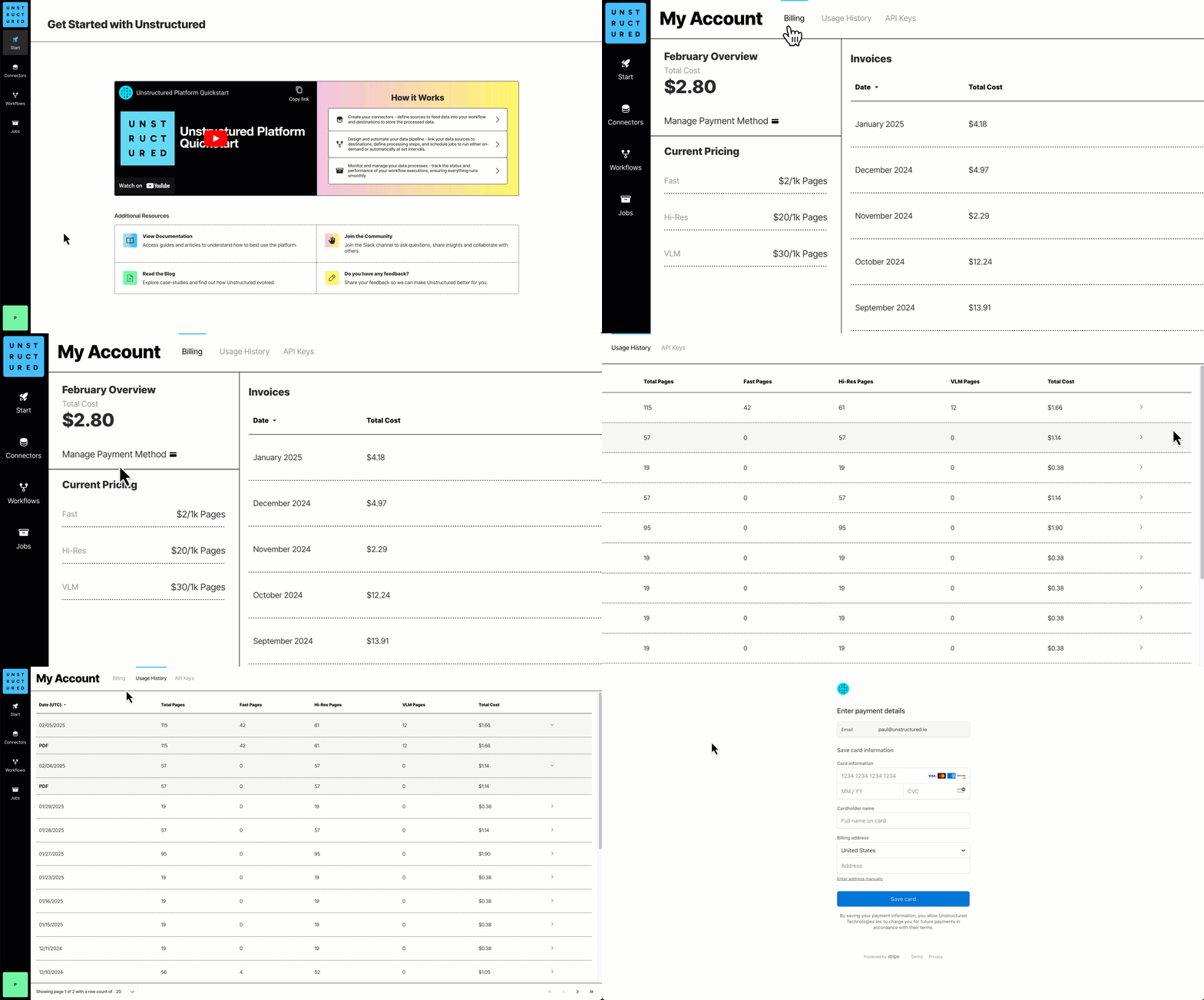 1. Sign in to your Unstructured account, at [https://platform.unstructured.io](https://platform.unstructured.io).
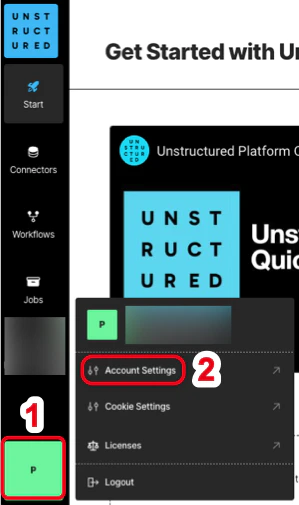
2. At the bottom of the sidebar, click your user icon, and then click **Account Settings**.
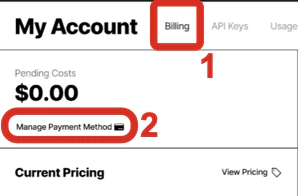
3. Click the **Billing** tab.
4. Click **Manage Payment Method**, follow the on-screen instructions to enter or update your payment details, and then click **Save card**.
## Switch from pay-per-page billing to a subscribe-and-save plan
Go to the [Unstructured Subscribe & Save](https://unstructured.io/subscribeandsave) page and complete the on-screen instructions.
## View pay-per-page billing details
1. Sign in to your Unstructured account, at [https://platform.unstructured.io](https://platform.unstructured.io).
2. At the bottom of the sidebar, click your user icon, and then click **Account Settings**.
3. Click the **Billing** tab.
4. Click **Manage Payment Method**, follow the on-screen instructions to enter or update your payment details, and then click **Save card**.
## Switch from pay-per-page billing to a subscribe-and-save plan
Go to the [Unstructured Subscribe & Save](https://unstructured.io/subscribeandsave) page and complete the on-screen instructions.
## View pay-per-page billing details
 1. Sign in to your Unstructured account, at [https://platform.unstructured.io](https://platform.unstructured.io).
2. At the bottom of the sidebar, click your user icon, and then click **Account Settings**.
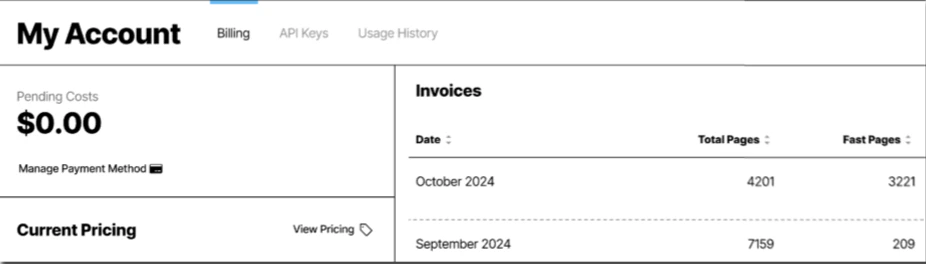
3. Click the **Billing** tab. A billing overview for the current month and a list of your billing invoices are displayed.
## View subscribe-and-save budget amounts
1. Sign in to your Unstructured account, at [https://platform.unstructured.io](https://platform.unstructured.io).
2. At the bottom of the sidebar, click your user icon, and then click **Account Settings**.
3. Click the **Billing** tab. A billing overview for the current month and a list of your billing invoices are displayed.
## View subscribe-and-save budget amounts
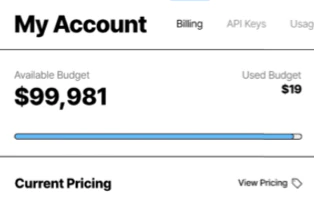 1. Sign in to your Unstructured account, at [https://platform.unstructured.io](https://platform.unstructured.io).
2. At the bottom of the sidebar, click your user icon, and then click **Account Settings**.
3. Click the **Billing** tab. The available and used budgets for your current plan are displayed.
## Add budget to a subscribe-and-save plan
Email Unstructured Sales at [sales@unstructured.io](mailto:sales@unstructured.io) directly with your request.
## How is billing calculated?
We calculate a page as follows:
* For these file types, a page is a page, slide, or image: .pdf, .pptx, and .tiff.
* For .docx files that have page metadata, we calculate the number of pages based on that metadata.
* For all other file types, we calculate the number of pages as the file's size divided by 100 KB.
* For non-file data, we calculate a page as 100 KB of incoming data to be processed.
The **Billing** tab shows your account's current billing rate per page.
To complete usage-related tasks in your account, see [Account usage](/ui/account/usage).
1. Sign in to your Unstructured account, at [https://platform.unstructured.io](https://platform.unstructured.io).
2. At the bottom of the sidebar, click your user icon, and then click **Account Settings**.
3. Click the **Billing** tab. The available and used budgets for your current plan are displayed.
## Add budget to a subscribe-and-save plan
Email Unstructured Sales at [sales@unstructured.io](mailto:sales@unstructured.io) directly with your request.
## How is billing calculated?
We calculate a page as follows:
* For these file types, a page is a page, slide, or image: .pdf, .pptx, and .tiff.
* For .docx files that have page metadata, we calculate the number of pages based on that metadata.
* For all other file types, we calculate the number of pages as the file's size divided by 100 KB.
* For non-file data, we calculate a page as 100 KB of incoming data to be processed.
The **Billing** tab shows your account's current billing rate per page.
To complete usage-related tasks in your account, see [Account usage](/ui/account/usage).